
Show Me the File
Fast Windows file search with no administrator rights needed. Free, including commercial use.
Download
The installer and portable versions may show a Windows warning the first time you run them. Click [More info] → [Run anyway] to install and use them as usual. Learn more
Coming soon. Download buttons will appear here when it is released.
Show Me the File — completely free, fast file search that asks for no special permissions
“Where was that file again?”
If you have ever been frustrated trying to find a file in Windows, Show Me the File finds it fast. Just type any part of the file name you remember. Whether for personal or work use, every feature is free.
No administrator rights needed
Show Me the File was designed from the start to deliver fast search without administrator rights, so with the default installation (“Current user only”) you will not even see a window where Windows asks for administrator permission. Just install it and start using it.
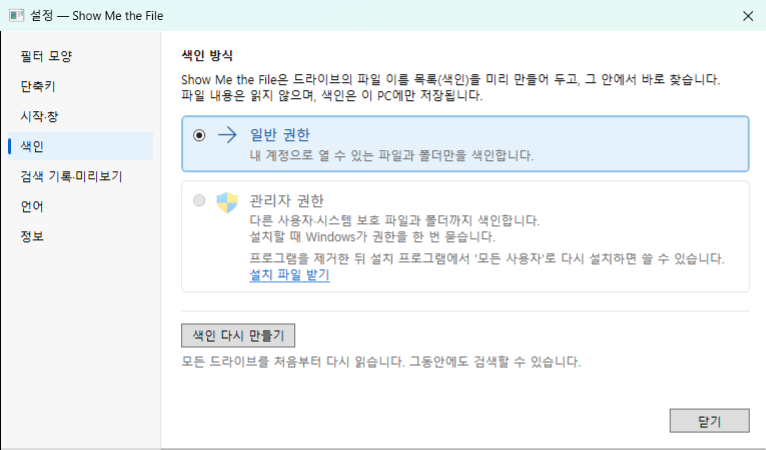
Even without administrator rights, it quickly searches every file you can open. With administrator rights, it can search every file on your PC, including other users' folders and protected system locations. To use administrator rights, install it for “All users” or choose administrator rights in the portable version (see Which file should I download?).
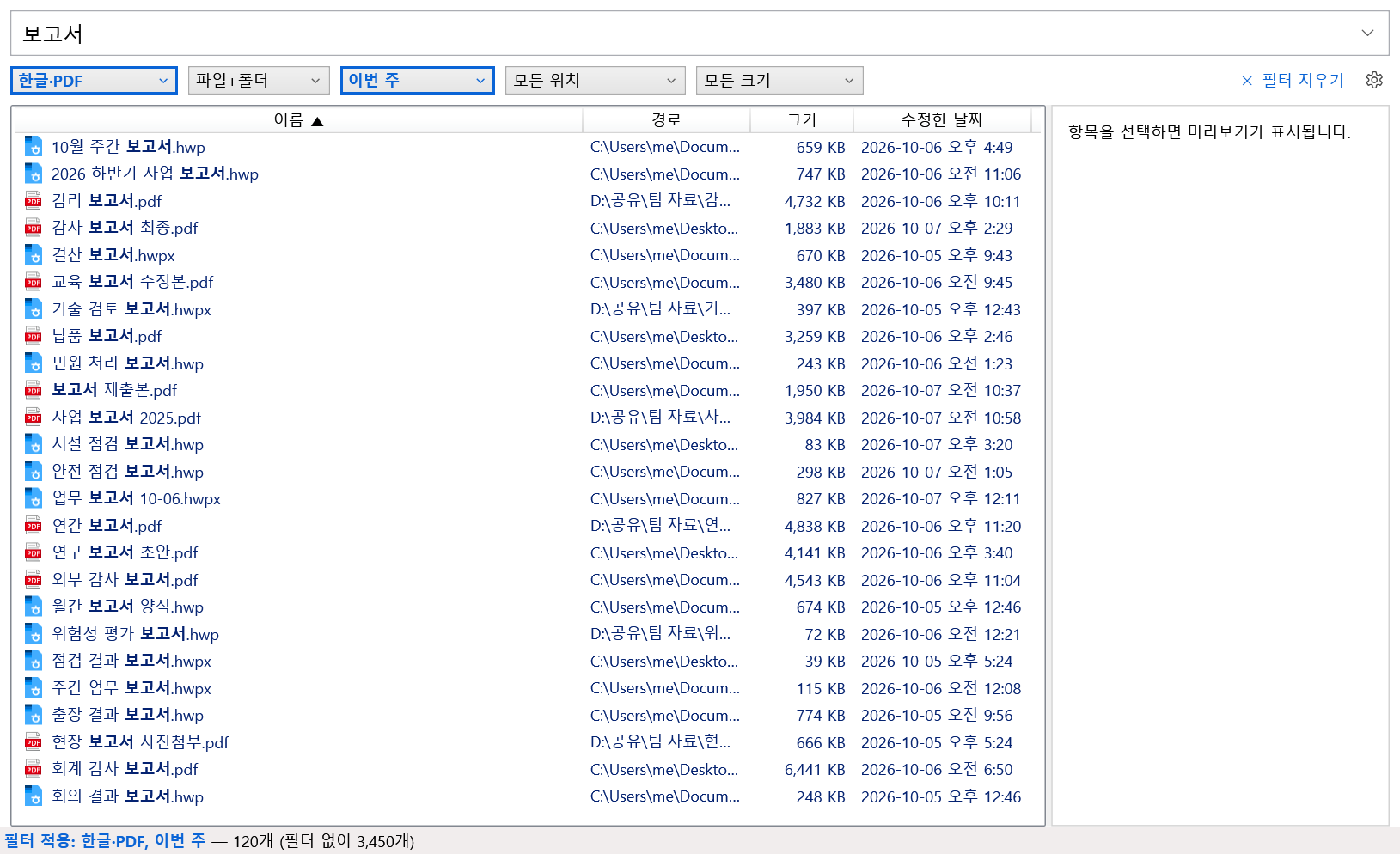
Type part of a file name and it appears on screen instantly
Results appear the moment you type a keyword. There is no need to wait for a search to finish or watch a “Searching…” message.
Free for everyone, everywhere
Show Me the File is free for anyone to use, including for commercial purposes. There are no in-app purchases, no subscriptions and no locked premium features. Using it for work at your company costs no separate license fee.
Light and simple
You can use it right after installing it, with no complicated setup. It uses few system resources, so it does not get in the way of your other work.
Recommended for
- People who need fast file search on a company PC with restricted permissions
- People who waste time finding files because File Explorer's search is slow
- Developers, designers and office workers who often dig through drives holding tens of thousands of files
Supported: Windows 10 version 1903 or later (64-bit), Windows 11 (64-bit)
Features
- Find by name, instantly — Results update as you type. It finds names that contain every word you type (separated by spaces), and supports the
*and?wildcards (for example,*.pdf). - Filters — Narrow results by type (HWP, PDF, Word, Excel, PowerPoint, text, image, video, music, archive, program — include or exclude), files or folders, date modified, location, size, and case-sensitive or whole-word matching. Choose from four filter layouts.
- Preview — Preview Excel, Word, PowerPoint, Hangul (HWP) and PDF documents without Office or Hancom Office installed. It also shows images, text, folder contents and the contents of archives (zip, 7z, tar, gz).
- Open right away — Double-click or press Enter to open; right-click and choose Open file location to show it in File Explorer. Drag a result to another program, or press Ctrl+C to copy its path.
- Tabs — Keep a tab for each search (up to 10) and switch between them. When you start the app again, it restores the tabs you had open.
- Shortcut keys — It waits in the notification area (system tray); press Alt+Space anywhere to bring it up. You can change the key in Settings. New tab Ctrl+T, close tab Ctrl+W, switch tabs Ctrl+Tab.
- 12 languages — 한국어, English, 日本語, 简体中文, 繁體中文, Deutsch, Français, Español, Português (Brasil), Русский, Italiano, Tiếng Việt. It follows your Windows setting, or you can choose one.
- Privacy — File names and search terms never leave your PC. The index (the list of file names) is stored only on this PC. No usage records or statistics are sent and there are no ads. The internet is used only to check for updates.
Which file should I download?
Installer (MSI, recommended)
You choose who to install for during setup. It adds a Start menu shortcut, and uninstalling removes the program and its data folder.
- Current user only (default) — Installs for this account only, without administrator permission. Indexing uses standard permissions.
- All users — Windows asks for permission once during setup, and it installs to
C:\Program Files. Administrator accounts index with administrator rights without being asked again at startup (another administrator account that did not install it is asked once). Standard accounts index with standard permissions.
You cannot change this choice inside the app. To change it, uninstall and install again.
The setup screens are in English, and in Korean on Korean Windows. The install scope options are “Current user only” and “All users” (in Korean, “현재 사용자만” and “모든 사용자”).
Portable (exe)
Runs from any folder without installing. It keeps its data in the ShowMeTheFile-data folder next to the exe. You choose the indexing method on the Indexing tab in Settings (standard permissions by default; with administrator rights, Windows asks for permission every time it starts). “Delete temporary data and exit…” in the tray menu removes what it left on the PC.
Standard permissions and administrator rights
- Standard permissions: indexes only the files and folders your account can open.
- Administrator rights: also indexes files and folders of other users and protected system locations.
System requirements
- Windows 10 version 1903 (May 2019 Update) or later, or Windows 11 (64-bit)
- 64-bit (x64) only
- Searches NTFS fixed drives
Installing and the SmartScreen warning
The Show Me the File installer and portable exe are not code-signed yet. Windows shows a warning for new unsigned files that few people have downloaded so far; it means Windows does not know the file's reputation yet. You can check that your file is the official one with the SHA-256 check below.
- When downloading — If Edge says the file “isn't commonly downloaded”, open the file's [] (More actions) menu in the downloads list and choose [Keep]. If it asks again, choose [Show more] and then [Keep anyway]. Button names may differ slightly by browser and version.
Simplified picture of the Edge download list: […] (More actions) → [Keep] → [Show more] → [Keep anyway]. - When running — If a “Windows protected your PC” window appears, click [More info]. The app name and “Publisher: Unknown publisher” appear, with a [Run anyway] button. Click [Run anyway].
Simplified picture of the warning window: click [More info] (1), then [Run anyway] (2). - Installer — Accept the license and choose who to install for. If you choose “All users”, Windows asks for permission once (User Account Control).
Check the file (SHA-256)
Open PowerShell in the folder you downloaded to and run the command below. If the Hash value matches the value in the table below, it is the official file. Upper or lower case does not matter.
Get-FileHash .\ShowMeTheFile-1.0.0-win-x64.msiThis command compares the installer with its value in the table below and prints True when they match. For the portable version, use its file name and value instead.
(Get-FileHash .\ShowMeTheFile-1.0.0-win-x64.msi).Hash -eq 'd47a9abad770e968f5e006f59d6c9e4017a34dadc52b809d53af6e7cfc22c117'Or download the .sha256 file from the table below into the same folder; this command then prints True when they match.
(Get-FileHash .\ShowMeTheFile-1.0.0-win-x64.msi).Hash -eq (Get-Content .\ShowMeTheFile-1.0.0-win-x64.msi.sha256).Split(' ')[0]| File | SHA-256 |
|---|---|
| ShowMeTheFile-1.0.0-win-x64.msi ShowMeTheFile-1.0.0-win-x64.msi.sha256 | d47a9abad770e968f5e006f59d6c9e4017a34dadc52b809d53af6e7cfc22c117 |
| ShowMeTheFile-1.0.0-win-x64-portable.exe ShowMeTheFile-1.0.0-win-x64-portable.exe.sha256 | 35f191dd583e034c662ba0f04c3af6bfb4a6d6dabaddadcf5b789f2a4c0dfb40 |
The SHA-256 value of each file will appear here when it is released.
Smart App Control on Windows 11
If Smart App Control is on in Windows 11, the unsigned installer and portable versions may be blocked with no [Run anyway] button. Smart App Control has no way to allow a single app. You can see whether it is on in Windows Security > App & browser control > Smart App Control settings.
Smart App Control protects your PC, so we do not recommend turning it off for this app. Please use the Microsoft Store version instead.
Frequently asked questions
I see a “Windows protected your PC” warning. Is it safe?
It appears because the file is new and not code-signed yet, so Windows does not know its reputation. Check that the file's SHA-256 value matches the one on this page, then run it with [More info] → [Run anyway]. See Installing and the SmartScreen warning for details.
Is it free?
Yes. Anyone — individuals, companies and organizations — may use it for free, including for commercial purposes, with no limits on number, time or devices. Donations are optional, and every feature works the same whether or not you donate. It is distributed only through the official channels listed on this site, so please do not upload it elsewhere.
What does it send over the internet?
Only update checks. When the app starts, every 24 hours after that, and when you click “Check for updates”, it asks the app's release repository (GitHub) whether there is a new version. The Microsoft Store version does not check for updates itself; Microsoft Store updates it. There is no account or sign-in.
File names and search terms never leave your PC. It does not send usage records or statistics, sends no automatic crash reports, and shows no ads. The [Support] link on the About page of the app's Settings window only opens this site's support page in your browser.
Does it search network drives?
No. It indexes the NTFS fixed drives of this PC. Network drives (mapped drives and UNC paths) are not indexed.
What about USB flash drives I plug in?
Removable drives such as USB flash drives, and FAT32 or exFAT drives, are not indexed. Files on them do not appear in results, even if you connect them while the app is running.
What if I connect an external drive later?
When the app starts, it indexes every NTFS fixed drive connected at that moment. A drive you connect while it is running is not indexed; restart the app and it will be.
How do I update?
The app checks for you. When a new version is out, it notifies you; click [Update] and it switches to the new version and restarts. You can also check from “Check for updates” in the tray menu or on the About tab in Settings. It verifies the downloaded file with SHA-256 before replacing anything. Your settings and search history stay as they are.
- Installer: downloads the new installer and installs it (about a minute). On a PC installed for all users, standard accounts only see the notification, so update from an administrator account.
- Portable: replaces the exe in place. The version number in the file name stays as it was when you first downloaded it.
How do I uninstall it?
- Installer: remove Show Me the File in Settings > Apps > Installed apps (Windows 10: Apps & features). This removes the program folder, the data folder, the auto-start task and the shortcuts. For an all-users install, only the data folder of the account that uninstalls is removed; other accounts' data folders remain.
- Portable: choose “Delete temporary data and exit…” from the tray icon menu and then delete the exe, or simply delete the exe and the
ShowMeTheFile-datafolder.
Where is my data stored?
- Installer:
%LocalAppData%\ShowMeTheFile - Portable: the
ShowMeTheFile-datafolder next to the exe (%LocalAppData%\ShowMeTheFileif that location is not writable)
It holds the file name index, settings, tabs, search history (off by default) and app logs (deleted after 30 days). It stays on this PC.
How do I index with administrator rights?
With standard permissions it indexes only the files and folders your account can open; with administrator rights it also indexes files and folders of other users and protected system locations. Search speed is the same.
- Installer: install for “All users”, and administrator accounts index with administrator rights. If you installed for the current user, uninstall and install again for all users.
- Portable: choose Administrator rights on the Indexing tab in Settings. Windows asks for permission every time it starts.
An index made with administrator rights is stored so that only administrators can read it.
Alt+Space clashes with another program.
Change it on the Shortcut tab in Settings. If another program already uses the key when the app starts, the Shortcut tab tells you in red. While Alt+Space is in use, it no longer opens the Windows window menu in other windows.
Is there a Microsoft Store version?
Yes. You can get it from Microsoft Store. Search works the same; these points differ:
- Updates: the app does not check for updates itself. Microsoft Store updates it.
- Permissions: it always indexes with standard permissions (no indexing with administrator rights).
- Start automatically: it uses Startup apps in Windows Settings instead of a Task Scheduler task.
- Data: kept in the app package folder and removed when you uninstall the app.
How can I contact you?
Email support@jhworks.app.